Check whether nano is available
Nano is a terminal text editor suitable for small configuration files and notes. This guide applies to Ubuntu 24.04 LTS and AlmaLinux 9. Start with a normal SSH login and check the installed version. If the command is missing, install the package using only the command matching your operating system.
Installing software requires an account permitted to use sudo. If you are already logged in as root, omit sudo. Package installation may prompt for confirmation; review the package list before accepting.
nano --versionsudo apt update
sudo apt install nanosudo dnf install nanoOpen a practice file
Start in your home directory and open a new, unused filename. If my-server-notes.txt already exists, choose a different filename for this exercise. Nano displays the filename at the top and shortcut hints near the bottom.
Type two short lines, such as a hostname and a reminder to check disk space. Move with the arrow keys and use Backspace or Delete to correct text. There are no separate command and typing modes. Avoid pasting unrelated terminal commands into a configuration file.
cd
nano my-server-notes.txt
Save and exit
In the shortcut hints, ^ means Ctrl. Press Ctrl+O to write the file, confirm the filename with Enter, then press Ctrl+X to exit. This save sequence works with the nano versions commonly supplied by both target distributions.
If you exit with unsaved changes, nano asks whether to save. Choose Y to save and confirm the filename, or N to discard the pending edits. Once back at the shell, inspect the file. Expect the exact lines you typed, with no keyboard shortcut text included.
cat my-server-notes.txt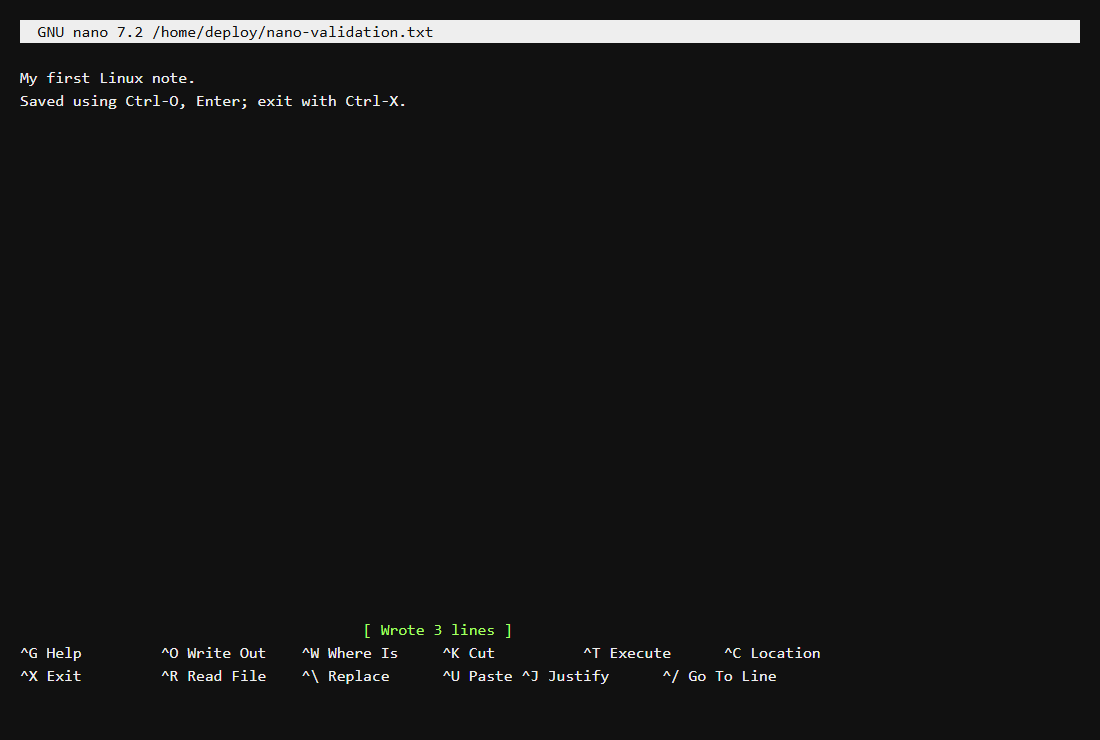
Find text and keep a backup
Reopen the notes and press Ctrl+W, type a word from the file, then press Enter to find it. Ctrl+G opens built-in help; Ctrl+X leaves the help view. Ctrl+K cuts the current line, and Ctrl+U pastes it back.
Before modifying an important existing file, make a backup outside the editor. The -i option asks before overwriting an earlier backup. For protected system configuration, use sudoedit with nano as the selected editor after checking the file's instructions.
cp -i my-server-notes.txt my-server-notes.txt.bak
nano my-server-notes.txt
Handle a failed save
A permission-denied error means your account cannot write the file or its directory. Check ownership and the path instead of repeatedly pressing save. A full filesystem can also prevent writing. If valuable edits are still open, Ctrl+O lets you save to a new file in your home directory.
ls -l my-server-notes.txt
ls -ld .
df -h .Official documentation
These upstream references provide more detail on the commands and workflows in this guide.