What n8n is for
n8n is a workflow automation tool with a visual editor. Workflows start from a trigger, such as a schedule or a webhook, and pass data through steps like HTTP requests, databases, email and AI models. It suits tasks such as summarising incoming messages, tagging records or posting a daily digest.
It runs well in a container on a small VPS, with 2 GB of memory or more for light use. Check its licence before using it commercially, because it is source-available under its own terms and not an open source licence.
Prepare the project
Install Docker first (see the Docker guide). Create a directory and an environment file. The secret protects credentials stored inside n8n, so generate it once, back it up and never change it, or saved credentials become unreadable.
mkdir -p ~/n8n && cd ~/n8n
(umask 077; printf "N8N_ENCRYPTION_KEY=%s\n" "$(openssl rand -hex 24)" > .env)
cat .env | sed 's/=.*/=(hidden)/'
Write the Compose file
The port is published on 127.0.0.1 only. Set N8N_SECURE_COOKIE to false only while you use it over an SSH tunnel with plain HTTP, and remove that line once you add HTTPS. Replace the time zone with yours so schedules run when you expect.
cat > compose.yaml <<'EOF'
services:
  n8n:
    image: docker.n8n.io/n8nio/n8n
    ports:
      - "127.0.0.1:5678:5678"
    environment:
      - N8N_ENCRYPTION_KEY=${N8N_ENCRYPTION_KEY}
      - GENERIC_TIMEZONE=Europe/London
      - TZ=Europe/London
      - N8N_SECURE_COOKIE=false
    volumes:
      - n8n_data:/home/node/.n8n
    restart: unless-stopped

volumes:
  n8n_data:
EOF
sudo docker compose up -d
sudo docker compose logs --tail 15 n8n
Reach it and create the owner account
Open an SSH tunnel from your computer, visit http://localhost:5678 and create the owner account right away. Until the owner exists, anyone who reaches the page can claim the instance, which is another reason to keep it on localhost.
ssh -L 5678:127.0.0.1:5678 deploy@YOUR_SERVERConnect it to a local model
Containers have their own loopback interface. Run Ollama on the same private Compose network, with no published ports, so n8n can reach http://ollama:11434. This example uses the smaller llama3.2:1b model; choose a larger model only if your server has enough free memory.
Add the ollama service below under services, at the same indentation as n8n. Add ollama_data under the existing top-level volumes block. Do not create a second services or volumes block.
  ollama:
    image: ollama/ollama:latest
    environment:
      - OLLAMA_KEEP_ALIVE=2m
      - OLLAMA_NUM_PARALLEL=1
    volumes:
      - ollama_data:/root/.ollama
restart: unless-stopped ollama_data:sudo docker compose config --quiet
sudo docker compose up -d
sudo docker compose exec ollama ollama pull llama3.2:1b
sudo docker compose exec n8n wget -qO- http://ollama:11434/api/tagsBuild a first workflow
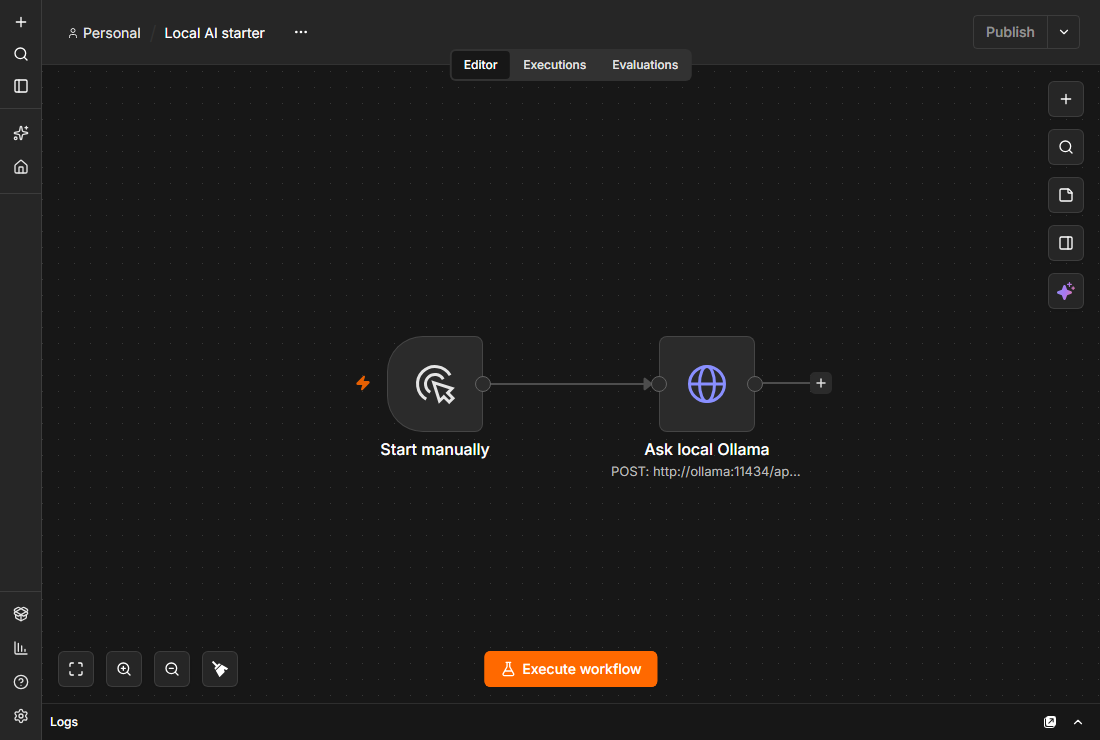
Start with Manual Trigger and connect it to an HTTP Request node. Set Method to POST and URL to http://ollama:11434/api/generate. Enable Send Body, choose JSON, and use the body below. Under Options, set Timeout to 120000 milliseconds.
Click Execute workflow. Open the HTTP Request output and check the response field for the generated answer. The request uses stream: false so the node receives one JSON result. If the request times out, first check the model download, available memory and Ollama logs.
After this works, replace the manual trigger with Schedule Trigger and add your own data source. Add notification credentials only when you are ready to send messages; running a test workflow can send a real email or chat message.
{
  "model": "llama3.2:1b",
  "prompt": "Explain SSH in one short sentence.",
  "stream": false
}
Webhooks, HTTPS and security
Workflows that start from a webhook need a public HTTPS address. Use the reverse proxy guide to publish n8n behind Nginx, set WEBHOOK_URL to your public address in the environment, and remove N8N_SECURE_COOKIE=false. Keep the editor protected by its own login, avoid exposing it without HTTPS, and use credentials stored in n8n rather than pasting keys into workflow steps.
- WEBHOOK_URL=https://n8n.example.com/
- N8N_HOST=n8n.example.com
- N8N_PROTOCOL=https
Back up and update
The data volume contains workflows, users, credentials and the SQLite database. Stop n8n before copying it so database files form one consistent backup. Keep a separate protected copy of .env: encrypted credentials cannot be recovered without the same N8N_ENCRYPTION_KEY.
Restore using the same image version before upgrading. A new version may migrate the database; an older image may then be unable to read it.
cd ~/n8n
sudo docker compose stop n8n
(umask 077; sudo docker run --rm -v n8n_n8n_data:/data -v "$PWD":/backup alpine tar czf /backup/n8n-data-$(date +%F).tar.gz -C /data .)
sudo chmod 600 n8n-data-*.tar.gz
sudo docker compose start n8n
sudo docker compose logs --tail 20 n8ncd ~/n8n
# Confirm the archive and volume before clearing the destination.
tar tzf n8n-data-YYYY-MM-DD.tar.gz | head
sudo docker compose stop n8n
sudo docker run --rm -v n8n_n8n_data:/data -v "$PWD":/backup alpine sh -c 'find /data -mindepth 1 -maxdepth 1 -exec rm -rf {} + && tar xzf /backup/n8n-data-YYYY-MM-DD.tar.gz -C /data'
sudo docker compose start n8n
# Sign in and run the saved workflow to verify the restore.sudo docker compose pull
sudo docker compose up -d
sudo docker compose logs --tail 30 n8nRestored saved local AI workflow: Local AI starterOfficial documentation
These upstream references provide more detail on the commands and workflows in this guide.