What you will build
Open WebUI is a web interface for chatting with local models. In this guide, Ollama and Open WebUI run together as containers in one Compose project. Ollama is reachable only by Open WebUI on a private Docker network, and the interface is published on 127.0.0.1, so nothing is exposed until you add a reverse proxy.
You need Docker and Compose (see the Docker guide), enough memory for your chosen model plus roughly 1 GB for the interface, and a domain if you want HTTPS access. If you already installed Ollama directly on the server, stop it first so that two copies do not compete for memory.
sudo systemctl disable --now ollamasudo docker compose version
free -hCreate the project and a secret key
Create a directory and generate a random secret key. Open WebUI uses it to sign login sessions. Keep it in a file readable only by you, and out of any backups you share. The compose file reads it from an .env file.
mkdir -p ~/openwebui && cd ~/openwebui
(umask 077; printf "WEBUI_SECRET_KEY=%s\n" "$(openssl rand -hex 32)" > .env)
ls -l .env
Write the Compose file
This file defines both services and two named volumes for model files and application data. Ollama publishes no ports. Open WebUI is published as 127.0.0.1:3000, which only the server itself can reach. The :main tag follows the project's latest build; replace it with a specific release tag once it works, so that updates are deliberate.
cat > compose.yaml <<'EOF'
services:
  ollama:
    image: ollama/ollama:latest
    volumes:
      - ollama:/root/.ollama
    environment:
      - OLLAMA_KEEP_ALIVE=2m
      - OLLAMA_NUM_PARALLEL=1
    restart: unless-stopped

  open-webui:
    image: ghcr.io/open-webui/open-webui:main
    depends_on:
      - ollama
    ports:
      - "127.0.0.1:3000:8080"
    environment:
      - OLLAMA_BASE_URL=http://ollama:11434
      - WEBUI_SECRET_KEY=${WEBUI_SECRET_KEY}
    volumes:
      - open-webui:/app/backend/data
    restart: unless-stopped

volumes:
  ollama:
  open-webui:
EOF
sudo docker compose config --quiet && echo "Compose file OK"
Start it and download a model
Start the project in the background. The first start downloads images and takes a few minutes. Then pull a model through the Ollama container. Pick a size that fits your plan, as described in the Ollama guide.
sudo docker compose up -d
sudo docker compose ps
sudo docker compose logs --tail 20 open-webuisudo docker compose exec ollama ollama pull llama3.2:3b
sudo docker compose exec ollama ollama listReach it through an SSH tunnel and create the admin account
Until you set up a reverse proxy, view the interface through an SSH tunnel. From your own computer, forward a local port to the server's port 3000, then open http://localhost:3000. The first account you create becomes the administrator, so create it right away, before anyone else can.
ssh -L 3000:127.0.0.1:3000 deploy@YOUR_SERVER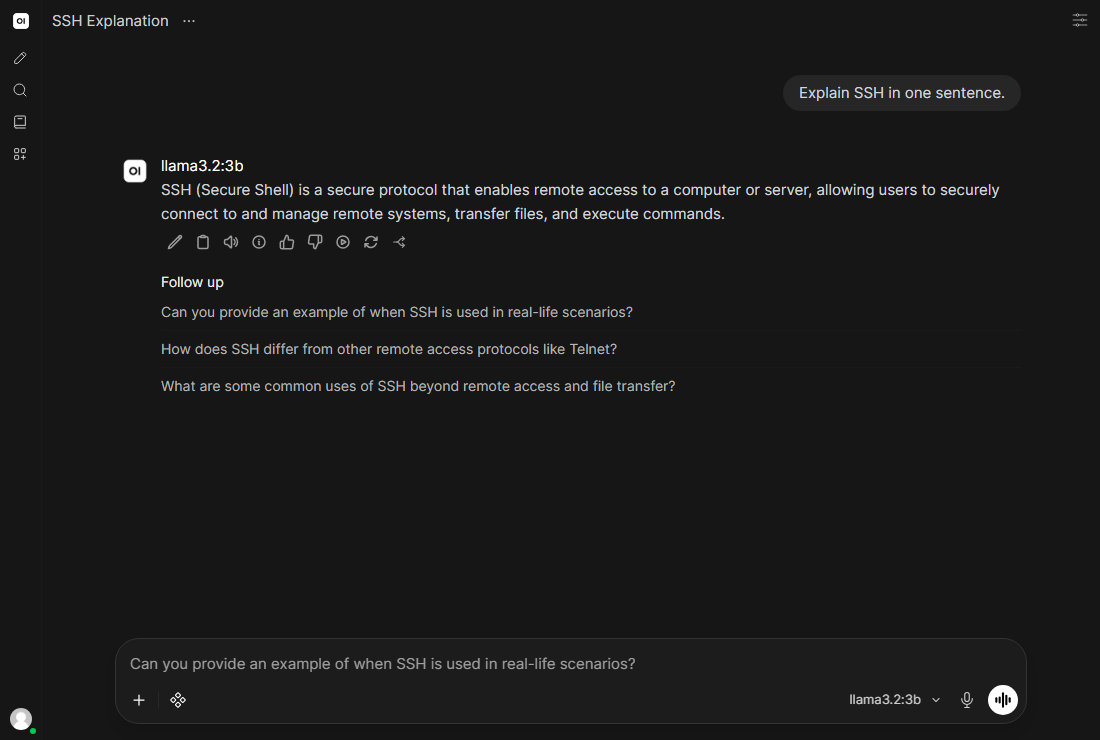
Turn off open sign-ups
The first account is the administrator. Current Open WebUI automatically disables registration after that account is created. Confirm the setting under Admin Panel → Settings → General, and test in a private browser window that a second account cannot register.
You can also set ENABLE_SIGNUP=False in Compose, but settings saved in the application database can take precedence over environment variables on an existing installation. Use the admin setting for that existing instance and confirm the resulting behaviour instead of relying only on the Compose file.
grep -q ENABLE_SIGNUP compose.yaml || sed -i '/OLLAMA_BASE_URL/a\      - ENABLE_SIGNUP=False' compose.yaml
sudo docker compose up -d
grep -n ENABLE_SIGNUP compose.yamlPublish it with HTTPS
To use the interface from a domain without a tunnel, follow the Nginx and Let's Encrypt guide and proxy the domain to 127.0.0.1:3000. Open WebUI streams answers over WebSockets, so keep the upgrade headers from that guide. Read the security guide for AI services before you do this.
Update, back up and stop
Pulling a new image and restarting updates the interface while keeping your data in the volumes. Back up the open-webui volume, which holds users, chats and settings. Model files in the ollama volume can be downloaded again, so they matter less. Check the project's licence, which includes conditions about branding, before you offer it to other people.
Stop Open WebUI before copying the application volume so its SQLite database and associated files form one consistent backup. Retain the same WEBUI_SECRET_KEY and tested image version when restoring.
sudo docker compose pull
sudo docker compose up -dcd ~/openwebui
sudo docker compose stop open-webui
sudo docker run --rm -v openwebui_open-webui:/data -v "$PWD":/backup alpine tar czf /backup/open-webui-$(date +%F).tar.gz -C /data .
sudo chmod 600 open-webui-*.tar.gz
sudo docker compose start open-webui
ls -lh open-webui-*.tar.gzcd ~/openwebui
sudo docker compose stop open-webui
sudo docker run --rm -v openwebui_open-webui:/data -v "$PWD":/backup alpine sh -c 'find /data -mindepth 1 -maxdepth 1 -exec rm -rf {} + && tar xzf /backup/open-webui-YYYY-MM-DD.tar.gz -C /data'
sudo docker compose start open-webui
# Sign in, open a saved conversation and check registration remains disabled.sudo docker compose downSaved chats before restore: 1
Saved chats after restore: 1
Users after restore: 1Official documentation
These upstream references provide more detail on the commands and workflows in this guide.